
YouTube App
The YouTube app allows you to display YouTube content in your playlist.
When you add and setup an app to a playlist, it appears as a scene.
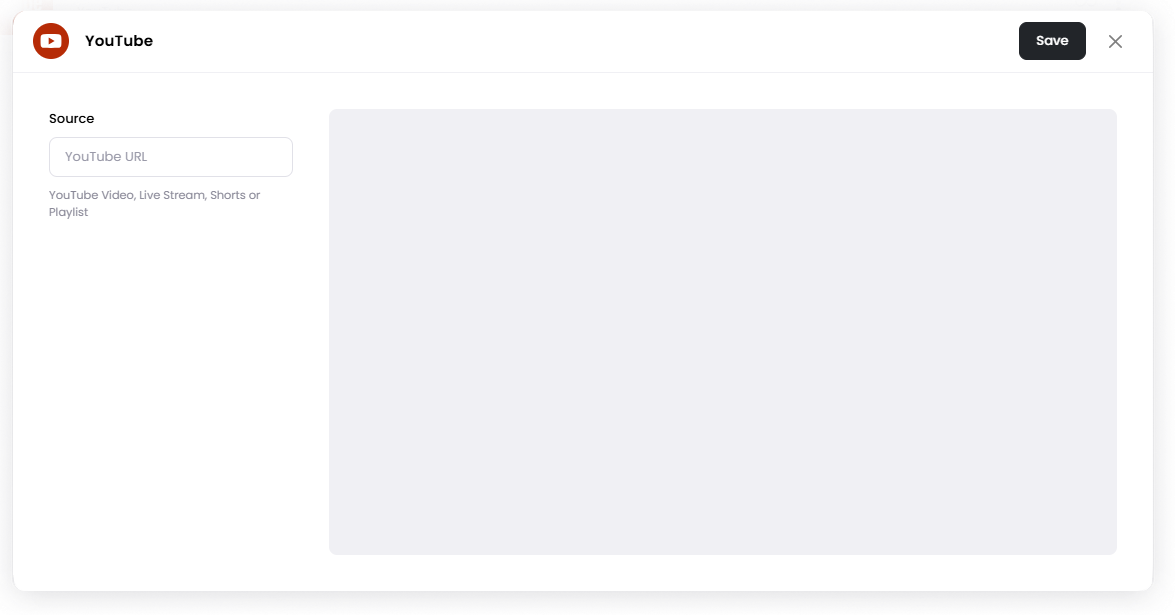
You can display a YouTube video, live stream, Shorts, or Playlist by entering the YouTube URL.
Add the YouTube App
Open the Playlist where you want to add the YouTube content.
In the right panel, drag YouTube into the playlist.
Open the scene to configure it.
Enter the YouTube URL.
You can enter a link to:
A YouTube video
A YouTube live stream
A YouTube Shorts video
A YouTube playlist
Click Save.
Configuration Options
Source Enter the YouTube URL of the content you want to display.
Example:
https://www.youtube.com/watch?v=examplehttps://www.youtube.com/shorts/examplehttps://www.youtube.com/playlist?list=example
The app will automatically detect the type of content.
Set the Scene Duration
After saving the app, you can also adjust how long the scene stays in the playlist.
In the Playlist, find the YouTube scene.
Click the duration value (for example,
00:30) to set how long the scene plays.00:30means the scene will play for 30 seconds.
Notes
You can display videos, live streams, Shorts, or playlists using their YouTube URLs.
If the scene duration is shorter than the video length, the video will stop when the scene ends.
If the scene duration is longer than the video length, the video will loop.
If the YouTube scene is the first scene in a playlist, depending on your internet speed, the screen may briefly appear black while the video loads.
On Android devices, a gray play icon or preview image may briefly appear before the video starts, especially on slower connections.
Using a remote control or interacting with the video may cause the YouTube interface to appear on screen.
If playback is paused directly from the YouTube player interface, the playlist will continue running until the scene duration ends and proceeds to the next scene available.