
Android / Chromecast Installation Guide
Install the Juuno app on your Android TV or any TV with Google Play Store access to turn your display into a digital signage screen.
Older Chromecast devices without Google TV are not supported. Check your device before proceeding.
Installation Steps
Go to the Home Screen: Press the Home button on your TV remote.
Open Google Play Store: Find and select the "Play Store" app from your apps.
Search for Juuno: Use the search function (magnifying glass icon) and type "Juuno".
Install the App: Select the Juuno app from search results and click Download or Install.
Open Juuno: Once installed, launch the app from the Play Store or find it under "Apps" on your Home screen.
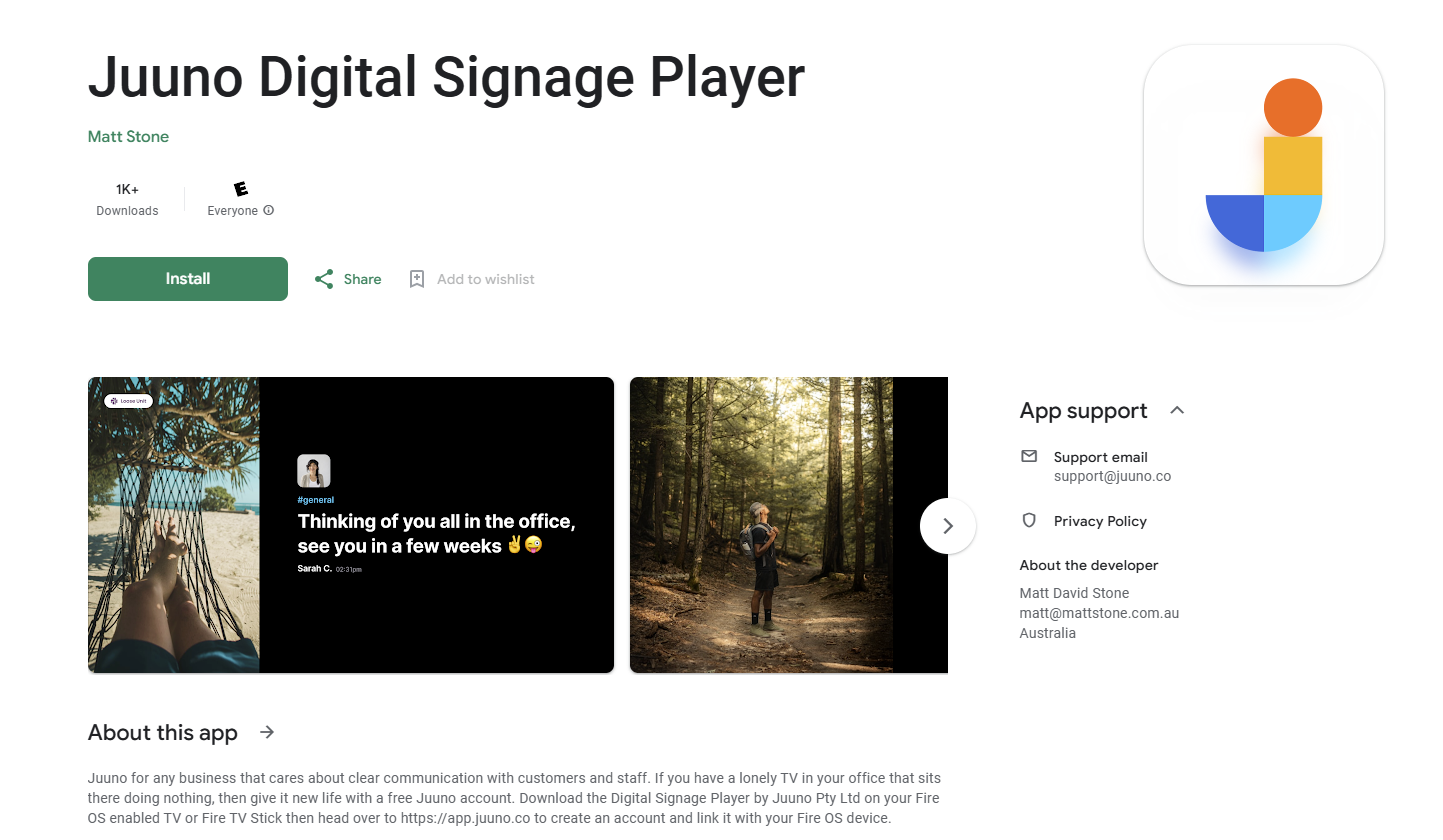
Direct link: Juuno Digital Signage Player on Google Play
Enable Autostart on Reboot
To automatically restart Juuno when your device powers back on after being turned off overnight:
Keep the Juuno app open before powering down your device.
Enable the "Display over other apps" permission:
Navigate to All Settings → Apps → Special App Access → Display over other apps
Toggle ON for Juuno only
This autostart feature ensures your signage resumes automatically without manual intervention each time your TV or device starts.