
Countdown App
The Countdown app displays a timer counting down to a specific date and time.
When you add and setup an app to a playlist, it appears as a scene.
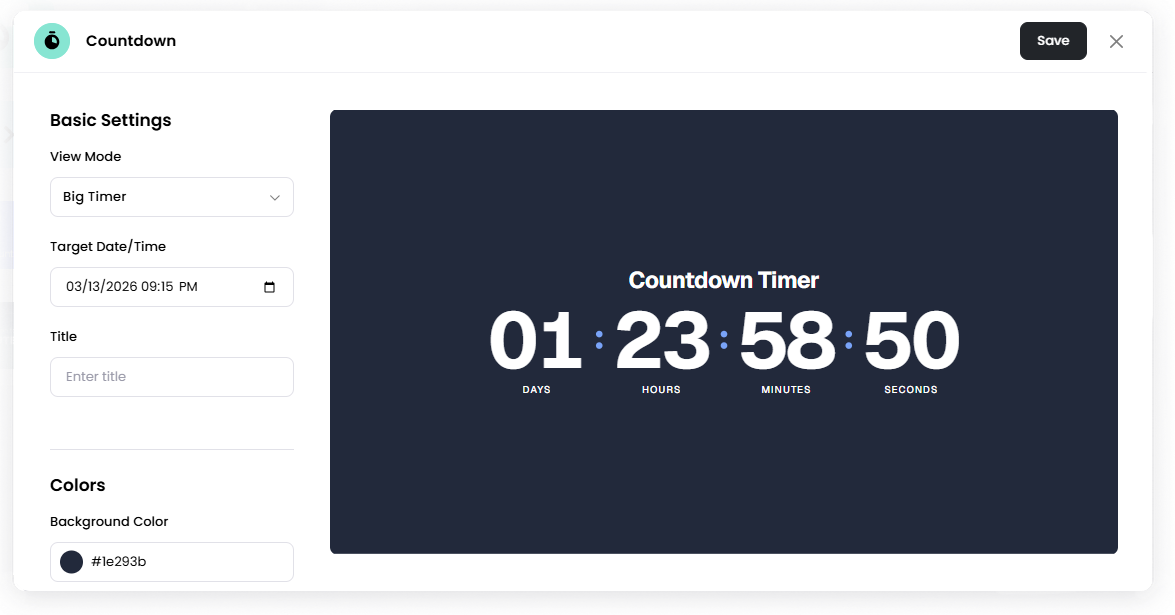
You can use it to highlight upcoming events, launches, or deadlines.
Add the Countdown App
Open the Playlist where you want to add the countdown timer.
In the right panel, drag Countdown into the playlist.
Open the scene to configure it.
Set the countdown options.
Click Save.
Configuration Options
View Mode Choose how the countdown timer is displayed.
Available options:
Big Timer — Displays days, hours, minutes, and seconds.
Days Only — Displays the number of days remaining.
Split Screen — Displays the countdown timer alongside additional space for promotional image.
Target Date/Time Select the date and time the countdown will end.
Title Enter a title displayed above the timer.
Example: Event Countdown, Product Launch, Grand Opening
Colors
Background Color Choose the background color for the timer display.
Text Color Choose the color of the timer text.
Accent Color Choose the color used for delimiter and other highlight messages
Display Options
Show Labels Toggle whether labels such as Days, Hours, Minutes, and Seconds appear below the timer.
Promo Asset
Image (for Split Screen view) Upload an image to display when Split Screen mode is selected.
Custom Labels
You can customize the labels used in the countdown display.
Available fields:
Days Label
Hours Label
Minutes Label
Seconds Label
Days Remaining Label
Set the Scene Duration
After saving the app, you can adjust how long the scene stays in the playlist.
In the Playlist, find the Countdown scene.
Click the duration value (for example, 00:30) to set how long the scene plays.
00:30means the scene will play for 30 seconds.
Notes
The timer automatically updates as time passes.
The timer continues counting down in the background, even when it is not the current scene being played in the playlist.
When the target date and time is reached, the timer will stop at 00:00:00:00.