
Weather App
The Weather app displays current weather information for a selected location.
When you add and setup an app to a playlist, it appears as a scene.
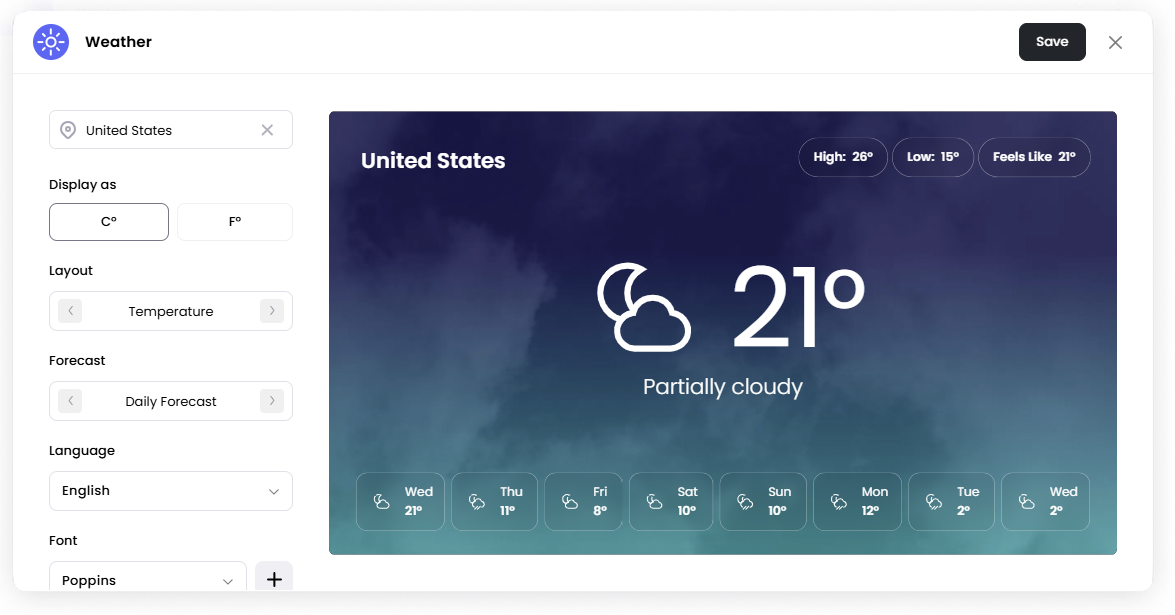
You can show the temperature or a sentence describing the weather, and optionally include a forecast.
Add the Weather App
Open the Playlist where you want to add the weather display.
In the right panel, drag Weather into the playlist.
Open the scene to configure it.
Enter a city or town in the location field.
Adjust the display settings if needed.
Click Save.
Configuration Options
Location Enter the city or town for which you want to display the weather.
Display as Choose whether the temperature is shown in:
°C
°F
Layout Controls how the weather information is displayed.
Example:
Temperature – Displays the current temperature.
Sentence – Displays the weather in a sentence format describing the current conditions.
Forecast Choose whether to display forecast information.
Options include:
None
2-hourly forecast
Daily forecast
Language Select the language used for the weather display.
The Weather app supports many languages.
Font Select the font used for the weather text.
Colour Choose the colour of the text.
Background Image Upload an image to use as the background for the weather display.
Background Colour Sets the background colour behind the weather display.
This option becomes available when a custom background image is uploaded.
Set the Scene Duration
After saving the app, you can adjust how long the scene stays in the playlist.
In the Playlist, find the Weather scene.
Click the duration value (for example,
00:30) to set how long the scene plays.00:30means the scene will play for 30 seconds.