
Announcement App
The Announcement app displays text messages on your screens. Use it to show short updates, reminders, or notices.
When you add and setup an app to a playlist, it appears as a scene.
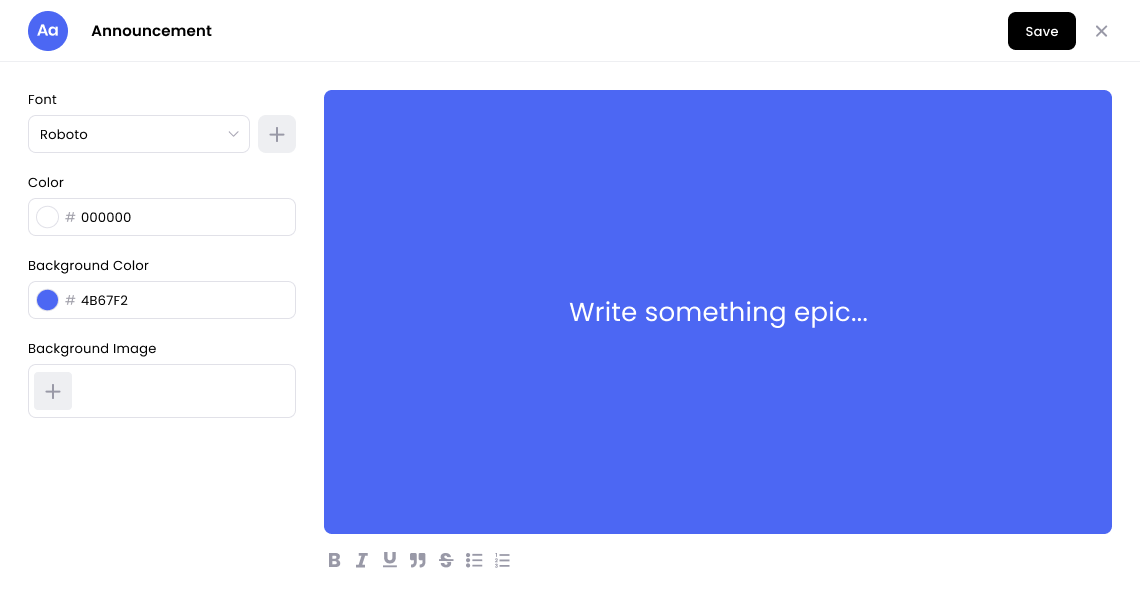
Adding the Announcement App
Open the Playlist where you want to add the announcement.
In the right panel, drag Announcement into the playlist.
Open announcement app scene to configure
Enter your message, customize the text style if needed.
Click Save.
Configuration Options
Text input: Type your announcement message
Color customization: Choose font style and color, and background color.
Background Image: Upload an image to display behind the message.
Duration: Set how long the announcement displays before moving to the next scene
Setting the Scene Duration
You can adjust how long the announcement appears.
In the Playlist, find the announcement scene.
Click the duration value (for example, 00:30) to set how long the scene plays. 00:30 means the scene will play for 30 seconds.
Set the desired duration.
Tips for Effective Announcements
Keep messages short and focused. One or two key points per announcement works better than cramming multiple updates into a single scene.
Use high contrast between text and background for readability. Dark text on light backgrounds or light text on dark backgrounds ensures viewers can read from a distance.
Rotate announcements by creating multiple scenes in your playlist. Organize related announcements into themed playlists (morning updates, afternoon events) and use schedules to control when each playlist plays.
Combine Announcement scenes with Image or Video scenes to create engaging, varied content. Mix text updates with visual elements to hold attention.
Give viewers enough time to read. Set durations of 5-10 seconds for short messages and 10-15 seconds for longer announcements. Test by previewing and reading aloud at normal speed.