
Image App
The Image app displays a single image on your screen.
When you add and setup an app to a playlist, it appears as a scene.
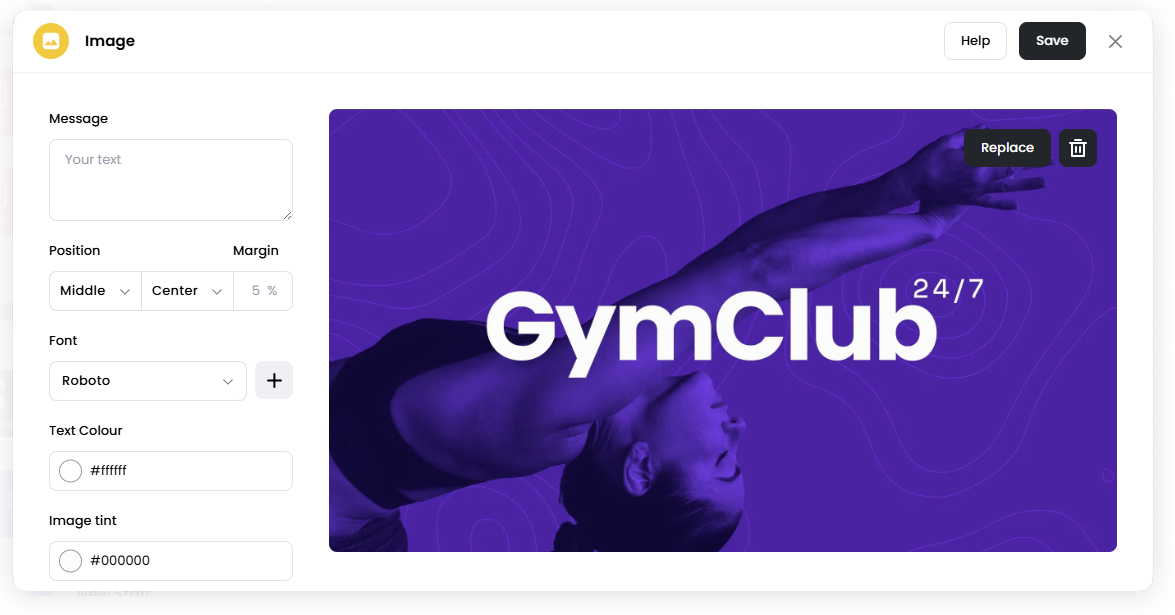
You can optionally add text on top of the image.
Add the Image App
Open the Playlist where you want to add the image.
In the right panel, drag Image app into the playlist.
Open the scene to configure it.
Click Browse Media Library to select an image, or upload a new one.
Adjust the configuration settings if needed.
Click Save.
Configuration Options
Message Add optional text that will appear on top of the image.
Position Set where the text appears on the screen.
Margin Adjust the spacing between the text and the screen edge.
Font Choose the font used for the text.
Text Colour Select the color used for the text.
Image Tint Apply a color overlay on the image. This can help improve text visibility.
Image Fit Controls how the image fits on the screen.
Example:
Fit and Center Image
Scale Image to fill frame
Background Colour Choose the background color shown behind the image if it does not fill the screen.
Set the Scene Duration
After saving the app, you can adjust how long the scene stays in the playlist.
In the Playlist, find the Image scene.
Click the duration value (for example,
00:30) to set how long the scene plays.00:30means the scene will play for 30 seconds.
Notes
Images are selected from the Media Library.
Supported image formats depend on the Media Library upload support.
Use Image Tint to improve text readability when placing text over an image.