
Birthday and New Staff Apps
The Birthday and New Staff apps display announcement-style messages on your screens.
When you add and setup an app to a playlist, it appears as a scene.
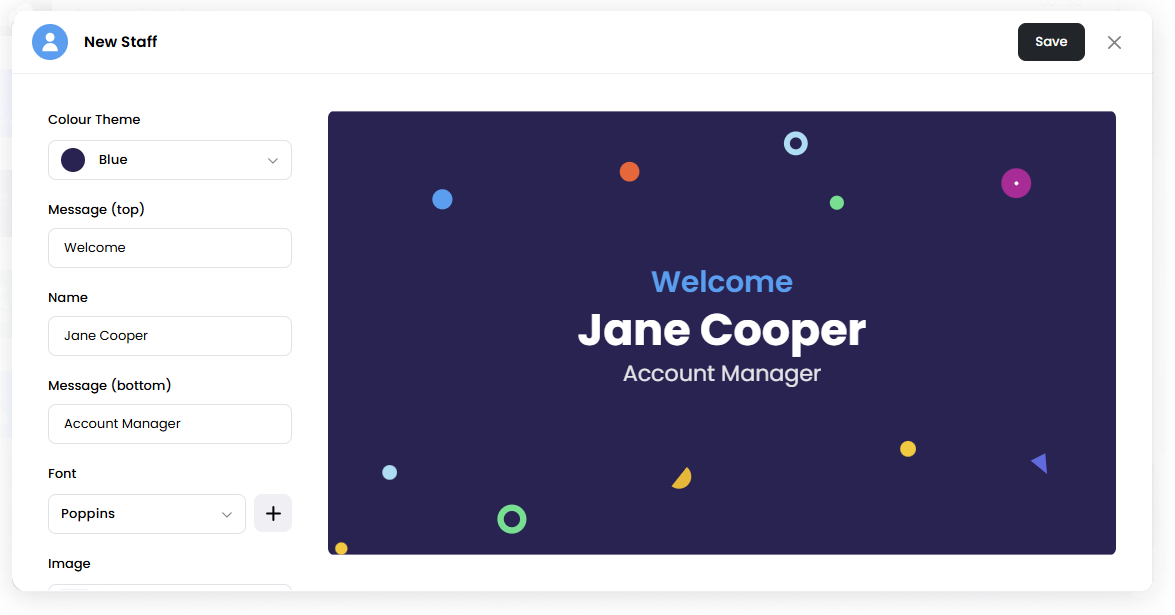
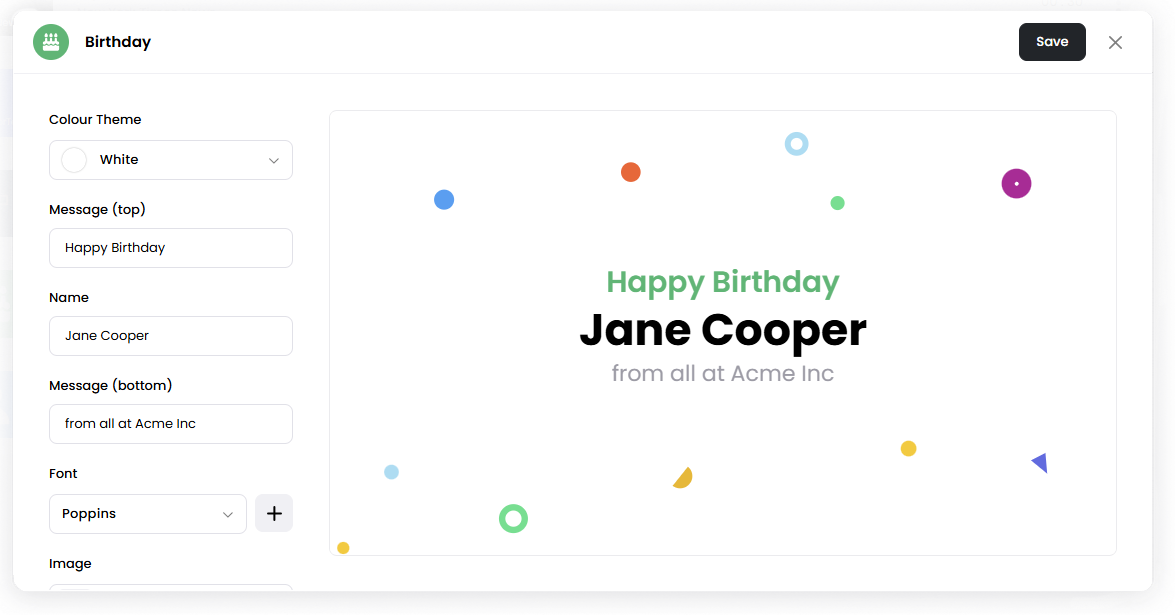
You can use these apps to highlight birthdays and/or welcome new team members.
Add the App
Open the Playlist where you want to add the app.
In the right panel, drag Birthday or New Staff into the playlist.
Open the scene to configure it.
Enter the message details.
Click Save.
Configuration Options
Colour Theme Choose a preset theme or select Custom to customize the appearance.
Message (top) Enter the message displayed above the name.
Example:
Happy Birthday
Welcome
Name Enter the name of the person being highlighted.
Message (bottom) Enter the message displayed below the name.
Examples:
From all at Acme Inc
Account Manager
Font Choose the font used for the message.
Image Upload an image to display on the announcement.
Custom Theme Options
When Custom is selected as the theme, additional appearance options become available.
Background Image Upload an image to use as the background.
Background Colour Choose the background color.
Text Colour Choose the color used for the text.
Set the Scene Duration
After saving the app, you can adjust how long the scene stays in the playlist.
In the Playlist, find the scene.
Click the duration value (for example, 00:30) to set how long the scene plays.
00:30means the scene will play for 30 seconds.
/Notes
Birthday and New Staff apps use the same configuration options.
You can use the Image option to include a photo or graphic.