
Embed App
The Embed app allows you to display external content on your screens using HTML embed code.
When you add and setup an app to a playlist, it appears as a scene.
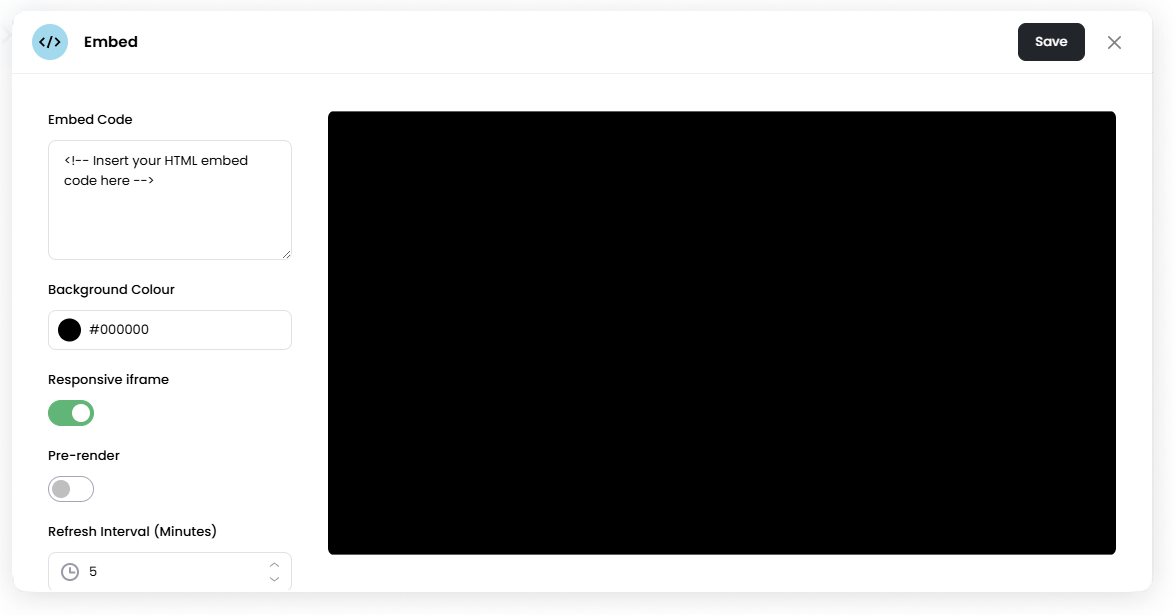
You can use it to display content such as dashboards, widgets, maps, or other embedded web content.
Add the Embed App
Open the Playlist where you want to add the embed content.
In the right panel, drag Embed into the playlist.
Open the scene to configure it.
Paste your HTML embed code.
Adjust the settings if needed.
Click Save.
Configuration Options
Embed Code Paste the HTML embed code for the content you want to display.
Example: iframe embed code from a website or service.
Background Colour Choose the background color shown behind the embedded content.
Responsive iframe Automatically resizes the embedded content to fit the screen.
Pre-render Loads the embedded content before the scene appears to reduce loading delays.
Refresh Interval (Minutes) Set how often the embedded content refreshes.
Example: 5 refreshes the content every 5 minutes.
The refresh interval timer continues counting down in the background, even when it's not the scene currently playing in the playlist.
Set the Scene Duration
After saving the app, you can adjust how long the scene stays in the playlist.
In the Playlist, find the Embed scene.
Click the duration value (for example, 00:30) to set how long the scene plays.
00:30means the scene will play for 30 seconds.
Notes
Some websites do not allow embedding and may not display inside the Embed app.
Embedded content require an internet connection to load.
If content does not update automatically, use Refresh Interval to reload it periodically.