
Days of the World App
The Days of the World app automatically displays notable events, holidays, and observances for the current day.
When you add and setup an app to a playlist, it appears as a scene.
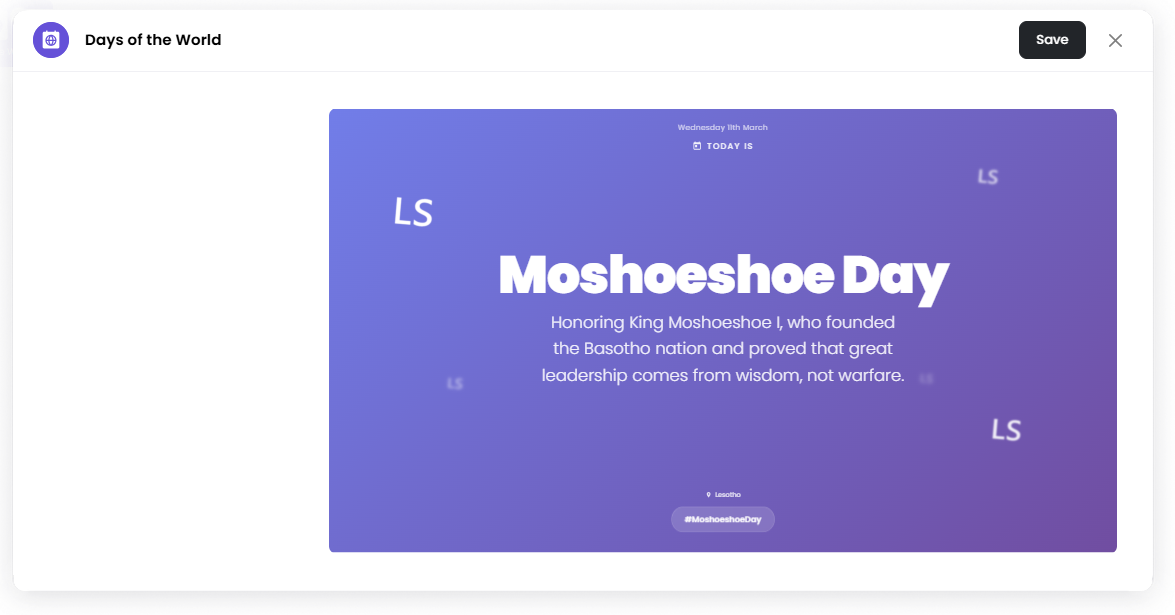
Content updates automatically each day.
Add the Days of the World App
Open the Playlist where you want to add the app.
In the right panel, drag Days of the World into the playlist.
Open the scene to preview the content.
Click Save.
Content
The app automatically displays:
The current date
A notable event or observance for the day
A short description of the event
Content updates automatically based on the current date.
Set the Scene Duration
After saving the app, you can adjust how long the scene stays in the playlist.
In the Playlist, find the Days of the World scene.
Click the duration value (for example, 00:30) to set how long the scene plays.
00:30means the scene will play for 30 seconds.
Notes
Content updates automatically each day.
No additional configuration is required.