
Quiz App
The Quiz app displays automatically generated quiz questions on your screens.
When you add and setup an app to a playlist, it appears as a scene.
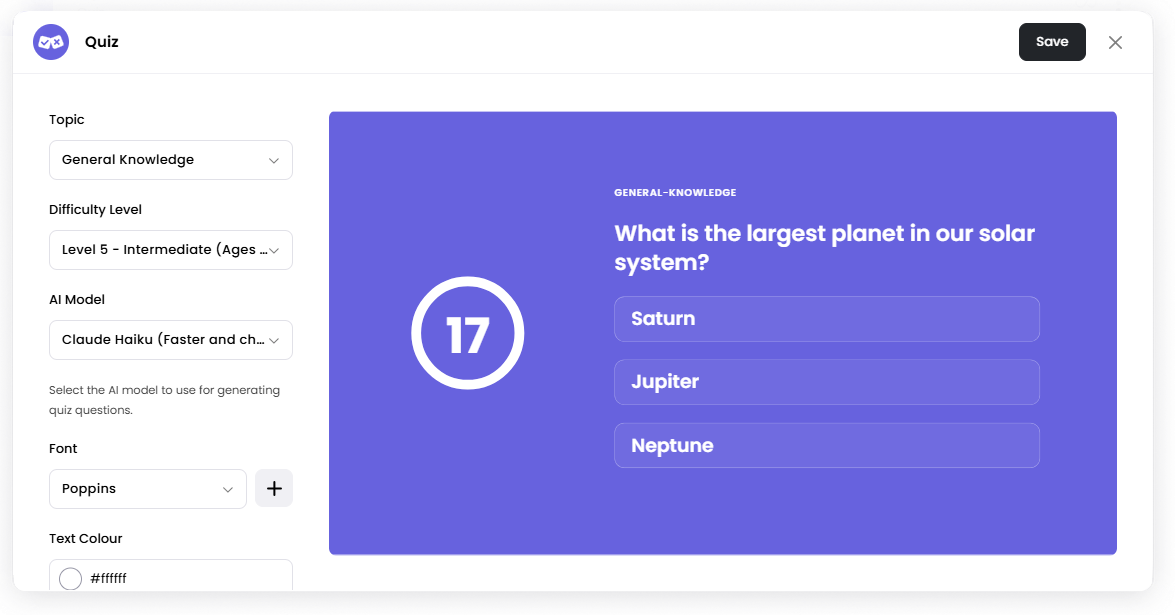
Each quiz includes a countdown timer. When the timer reaches 0, the correct answer, followed by a short fact about the answer will be revealed.
A new question is generated each cycle.
Add the Quiz App
Open the Playlist where you want to add the quiz.
In the right panel, drag Quiz into the playlist.
Open the scene to configure it.
Configure the quiz settings.
Click Save.
Configuration Options
Topic Choose the category used for generating quiz questions.
Examples include:
Geography
Animals
Literature
Arts
Sports
Technology and more
Selecting Other allows you to enter a custom topic.
Example: Roman Empire
Difficulty Level Choose the difficulty level for generated questions.
Levels range from Very Easy to Impossible.
AI Model Select the AI model used to generate quiz questions.
Example:
Claude Haiku — Faster responses
Claude Sonnet — Higher quality responses
Font Choose the font used for the quiz text.
Text Colour Choose the color used for the quiz text.
Background Colour Choose the background color behind the quiz.
Background Image Upload an image to display behind the quiz content.
Set the Scene Duration
After saving the app, you can adjust how long the scene stays in the playlist.
In the Playlist, find the Quiz scene.
Click the duration value (for example,
00:30) to set how long the scene plays.00:30means the scene will play for 30 seconds.
/Notes
Questions are generated automatically each cycle.
The answer and a short fact are revealed when the countdown timer reaches 0.
Selecting Other in Topic allows you to generate quizzes about a custom subject.