
Video App
The Video app lets you display videos from your Media Library.
When you add and setup an app to a playlist, it appears as a scene.
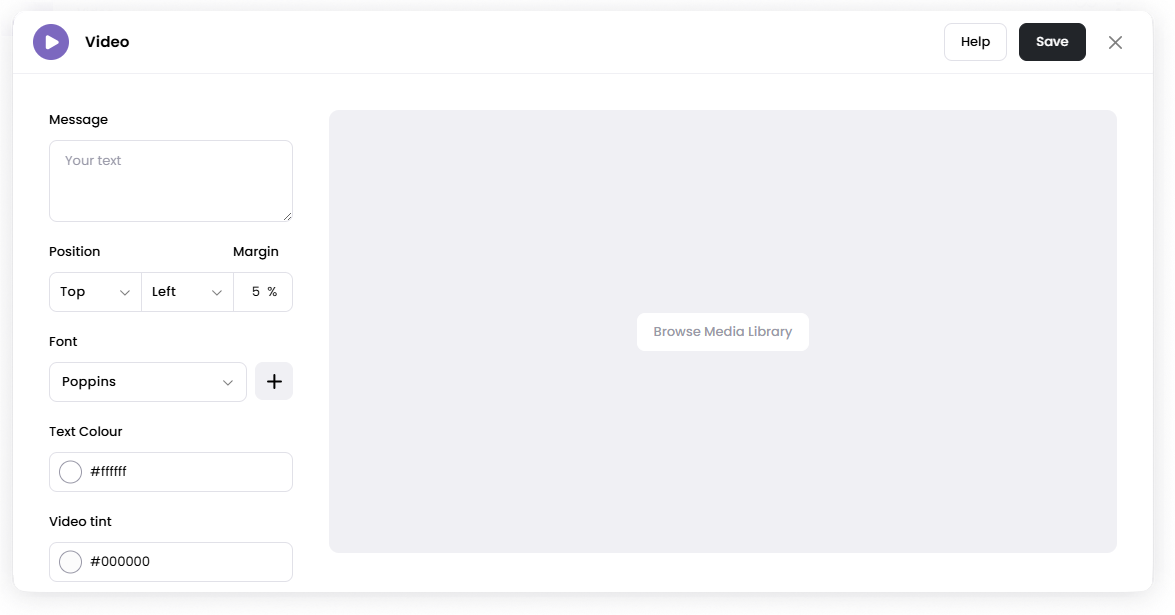
You can also add an optional text overlay on top of the video.
Add the Video App
Open the Playlist where you want to add the video.
In the right panel, drag Video into the playlist.
Open the scene to configure it.
Click Browse Media Library to select a video, or upload a new one.
Adjust the display settings if needed.
Click Save.
Configuration Options
Message Enter optional text to display on top of the video.
Position Choose where the message appears on the screen (Top, Middle, or Bottom and Left, Center, or Right).
Margin Adjust the spacing between the message and the edge of the screen.
Font Select the font used for the message text.
Text Colour Choose the color of the message text.
Video Tint Adds a colour overlay on top of the video to improve text visibility.
Video Fit Controls how the video fits within the screen.
Fit and Center Video – Displays the full video while keeping it centered.
Scale Video to Fill Frame – Fills the entire screen, which may crop some parts of the video.
Set the Scene Duration
After saving the app, you can adjust how long the scene stays in the playlist.
In the Playlist, find the Video scene.
Click the duration value (for example,
00:30) to set how long the scene plays.00:30means the scene will play for 30 seconds.
Notes
Videos are uploaded and managed through the Media Library.
Uploaded video files in the Media Library are processed and optimized for playback after uploading. This may take a short moment depending on the file size. Once processing is complete, you will receive an email notification and the video will be ready to use.
Supported file types: MP4, WebM, MOV
File size limit: 1gb
For best results, use videos with a resolution that matches your screen layout.
The video loops if the scene duration is longer than the video's total length